Setting up an open source stack
Installing PostgreSQL/PostGIS, PG Admin, Martin Tile Server, Nginex with Docker
Setting up an open source stack: PostgreSQL/PostGIS, PG Admin, Martin Tile Server, Nginex with Docker
This tutorial is intended to be part of a series. This first part is on how to setup an open source GIS stack, consisting of a PostgreSQL/PostGIS database, PG Admin to manage it, Martin Tile Server to generate and serve vector tiles from the PostGIS database, and Nginx as the web server. For the web map, I am using MapLibre. I can easily tear down, add or update containers as I need.
The easiest way I found to set up the stack is with Docker containers. I used Docker Desktop for local development work. This is my workflow on a Windows 11 OS desktop.
- Download and install the appropriate version of Docker Desktop for your computer. Make sure you have Docker Desktop running.
- I am using Visual Studio Code as my text editor. If you don’t have it already, download and install the appropriate version of VS Code for your computer.
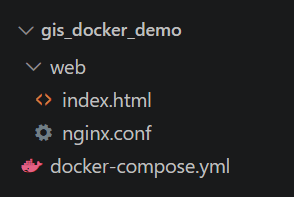
- Set up your folder structure. This is my example. I have a main folder (gis_docker_demo) with a docker compose file, and a subfolder (web) that has 2 files inside it: index.html and nginx.conf
- In VS Code. Open your folder (e.g. gis_docker_demo).
- Make sure VS Code is not running in restricted mode
- Install Docker Extension (Microsoft version) and/or Container Tools if you want to run Docker commands directly from VS Code
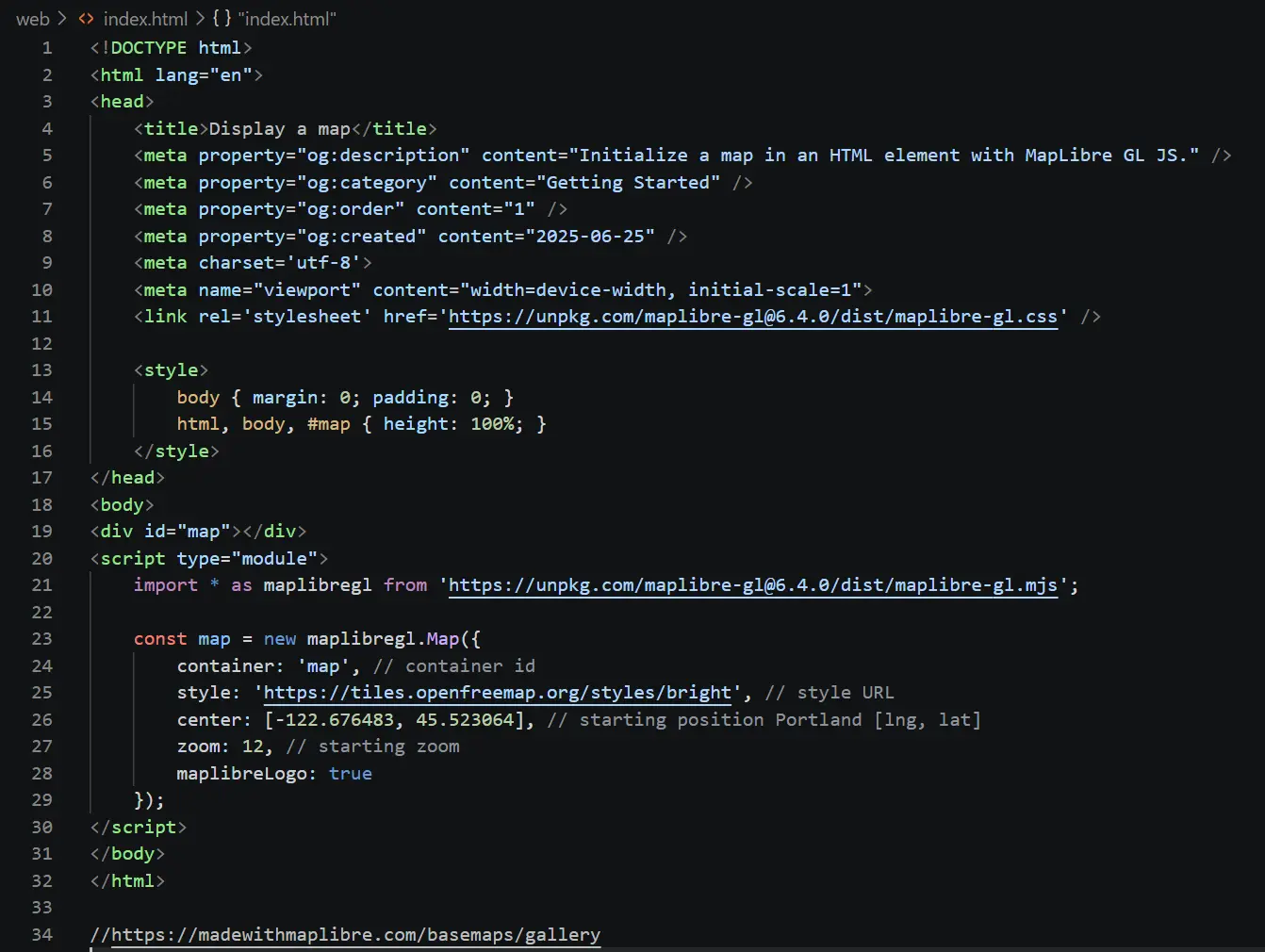
- Create a new index.html file in the web subfolder. This is a basic html file that includes a public MapLibre basemap to make sure that nginx web server is working.
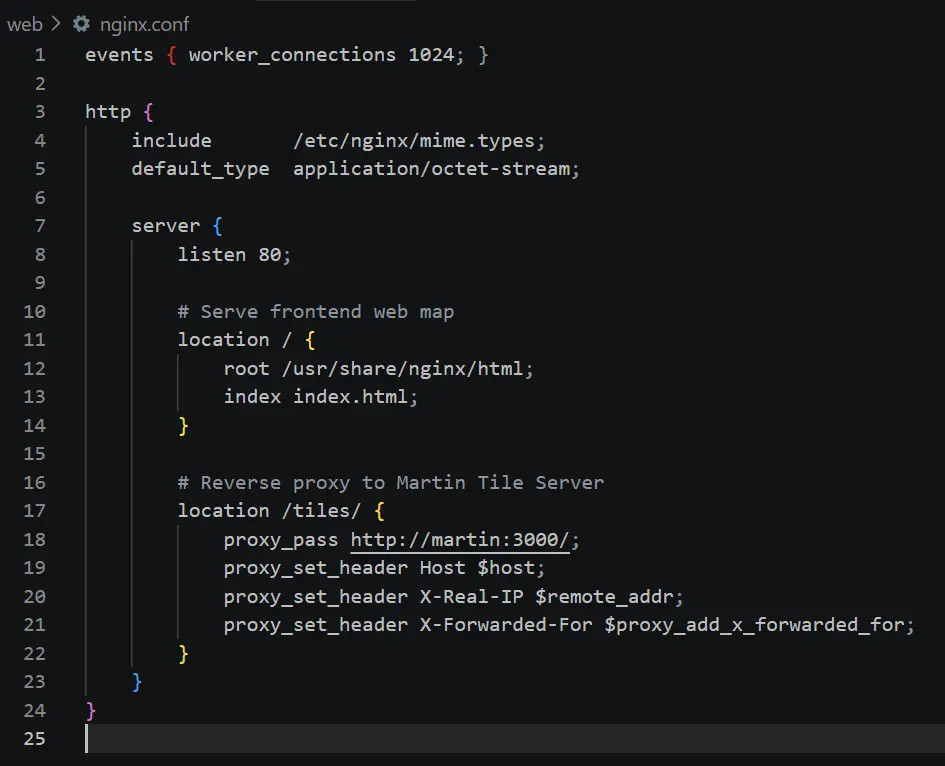
- Create a new nginx.conf file in the web subfolder. This is the configuration for nginx
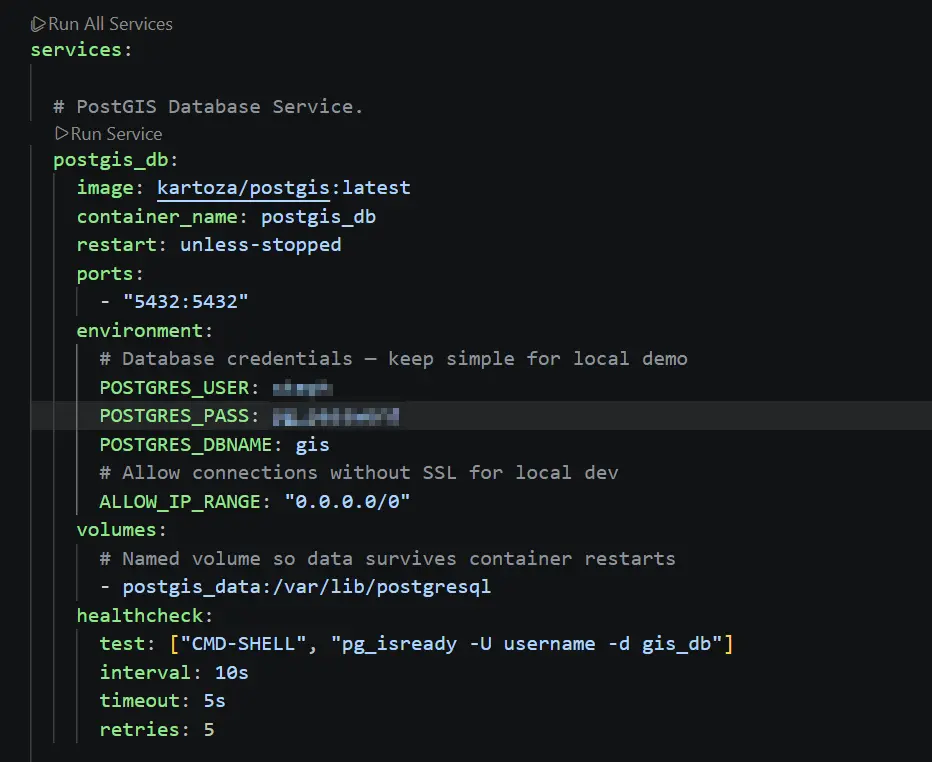
- Create a new docker-compose.yml file.
The docker compose file should contain 4 services: PostGIS database, PG Admin, Martin Tile Server and Nginx web server. For the PostGIS database I am using one from Kartoza. See references below.
This is my docker compose file as it looks in VS Code. You can run all the services at once or run each service individually to see if it works - the "run service" option is available if you have the Docker extension install in VS Code.
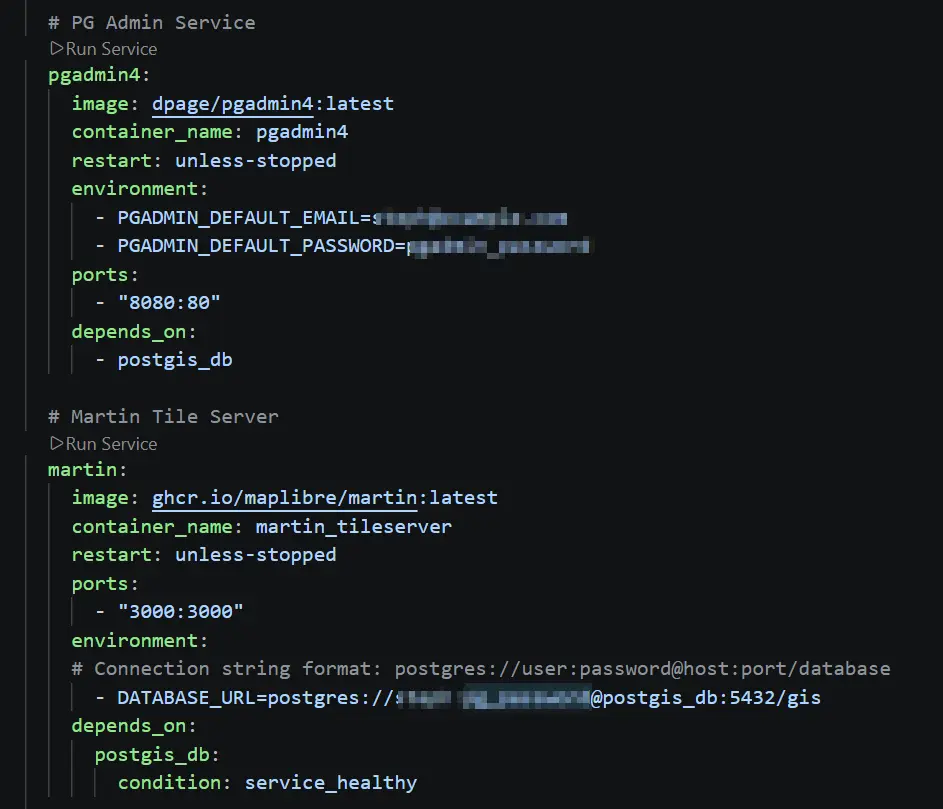
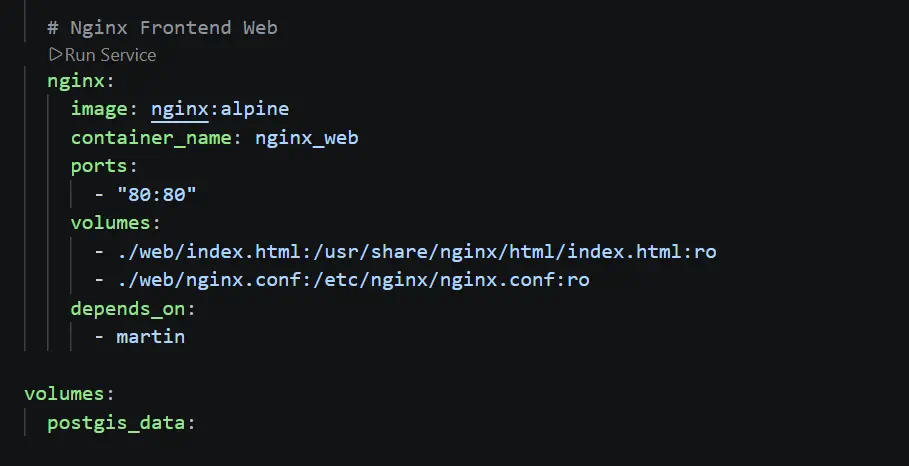
- If all the services in the docker compose file are successful then you should see the corresponding containers in Docker Desktop.
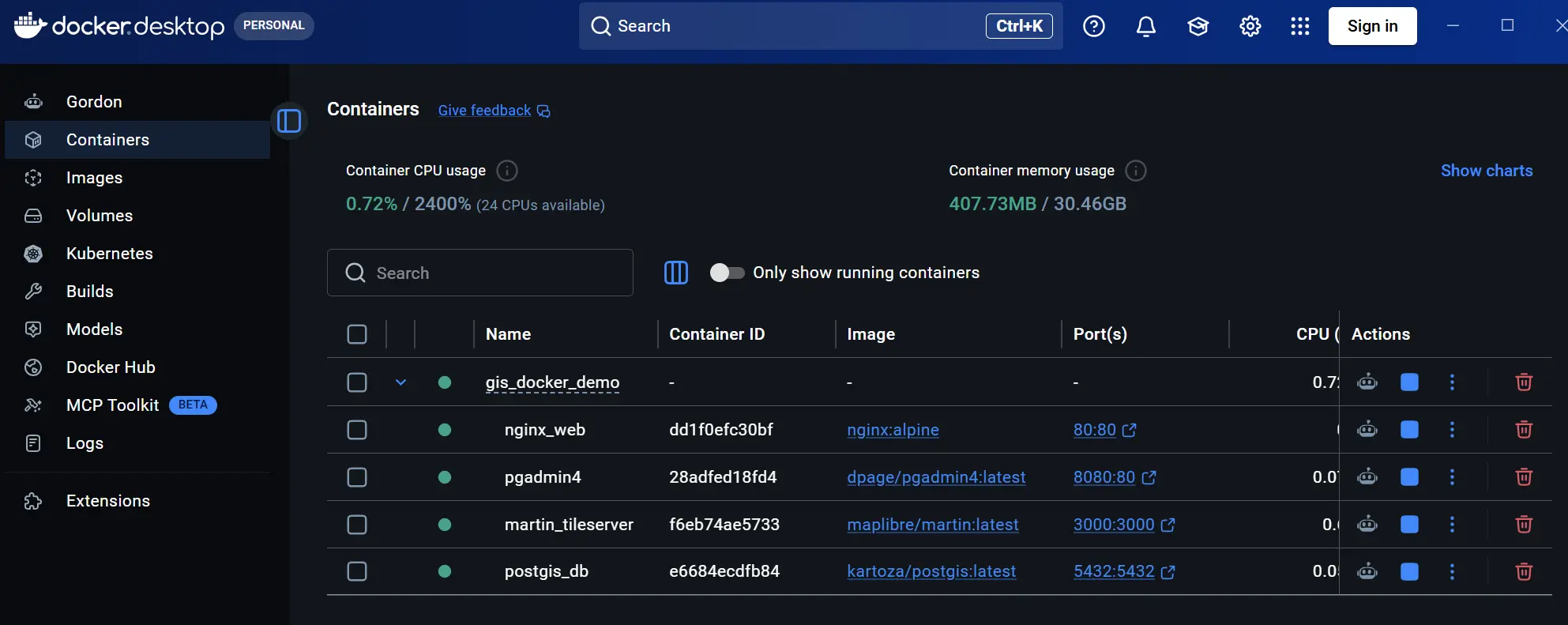
Clicking on the each of the service ports should show open it in your browser. Except the PostGIS db.
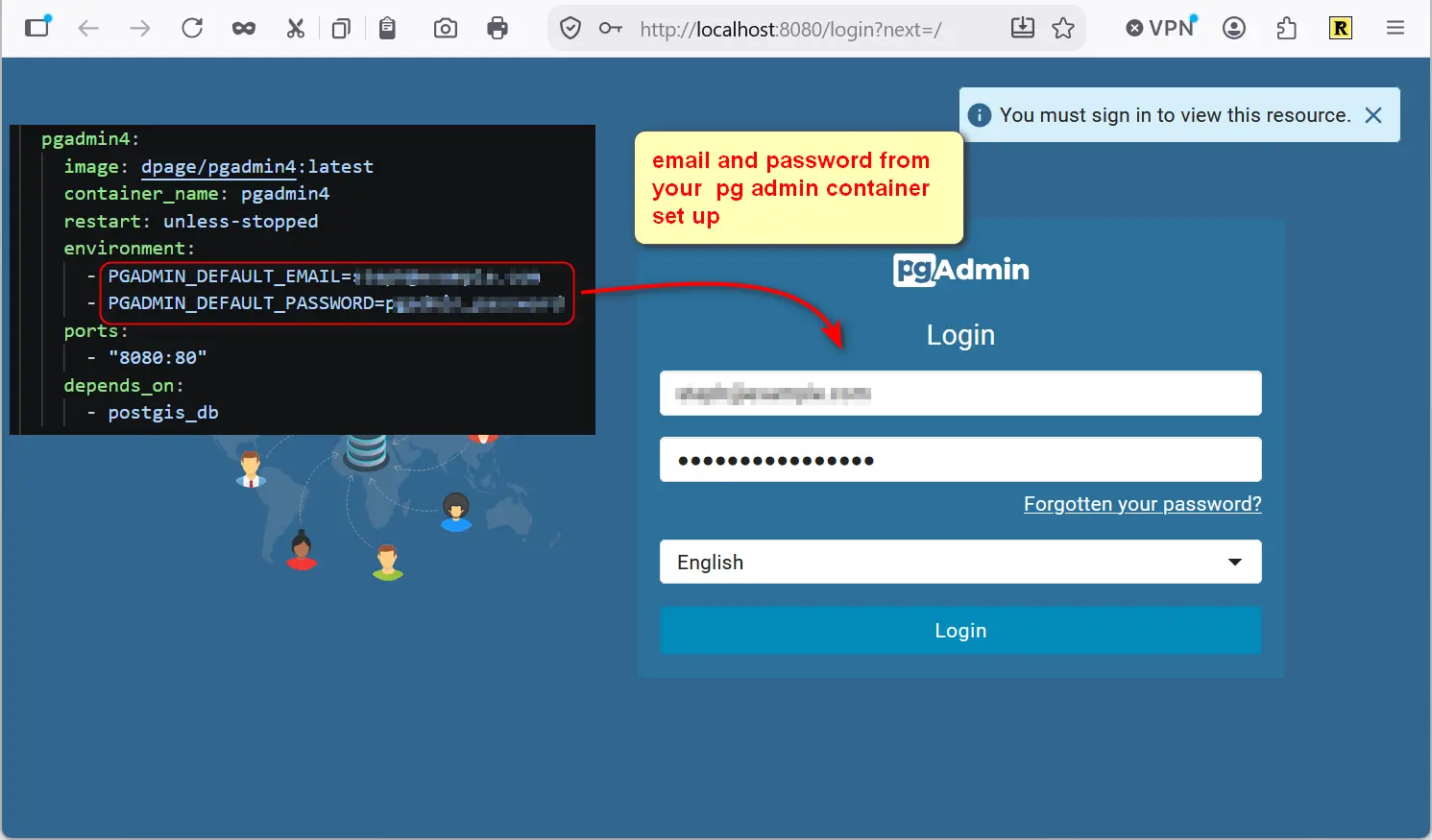
Check to see if pgAdmin can be accessed at http://localhost:8080
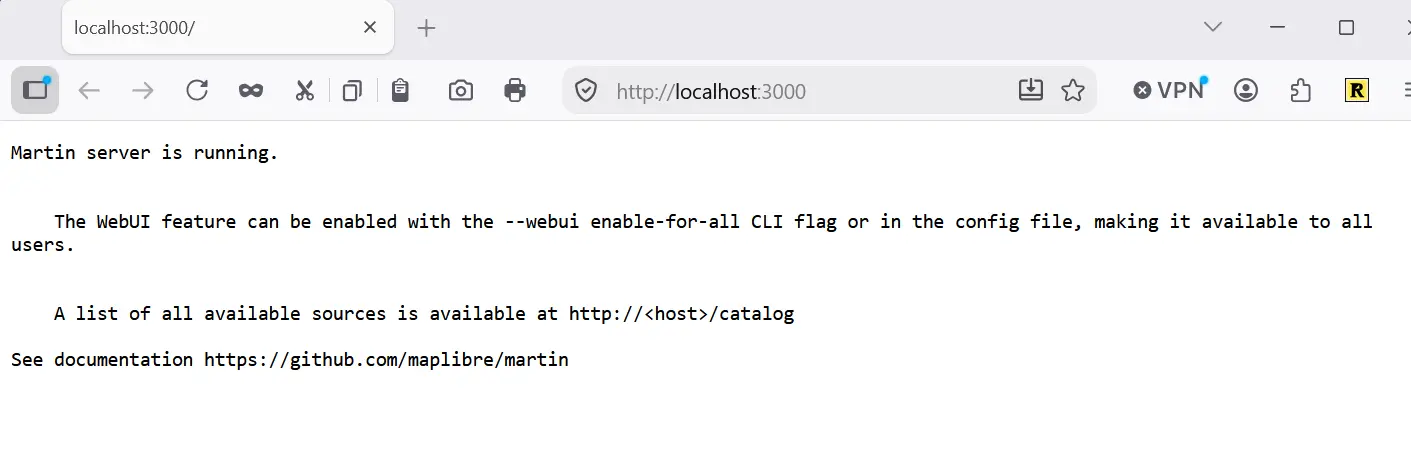
Check to see if Martin Tile Server can be accessed at http://localhost:3000
Check to see if Nginx web server is working and can serve a web map (the index.html file)
http://localhost/
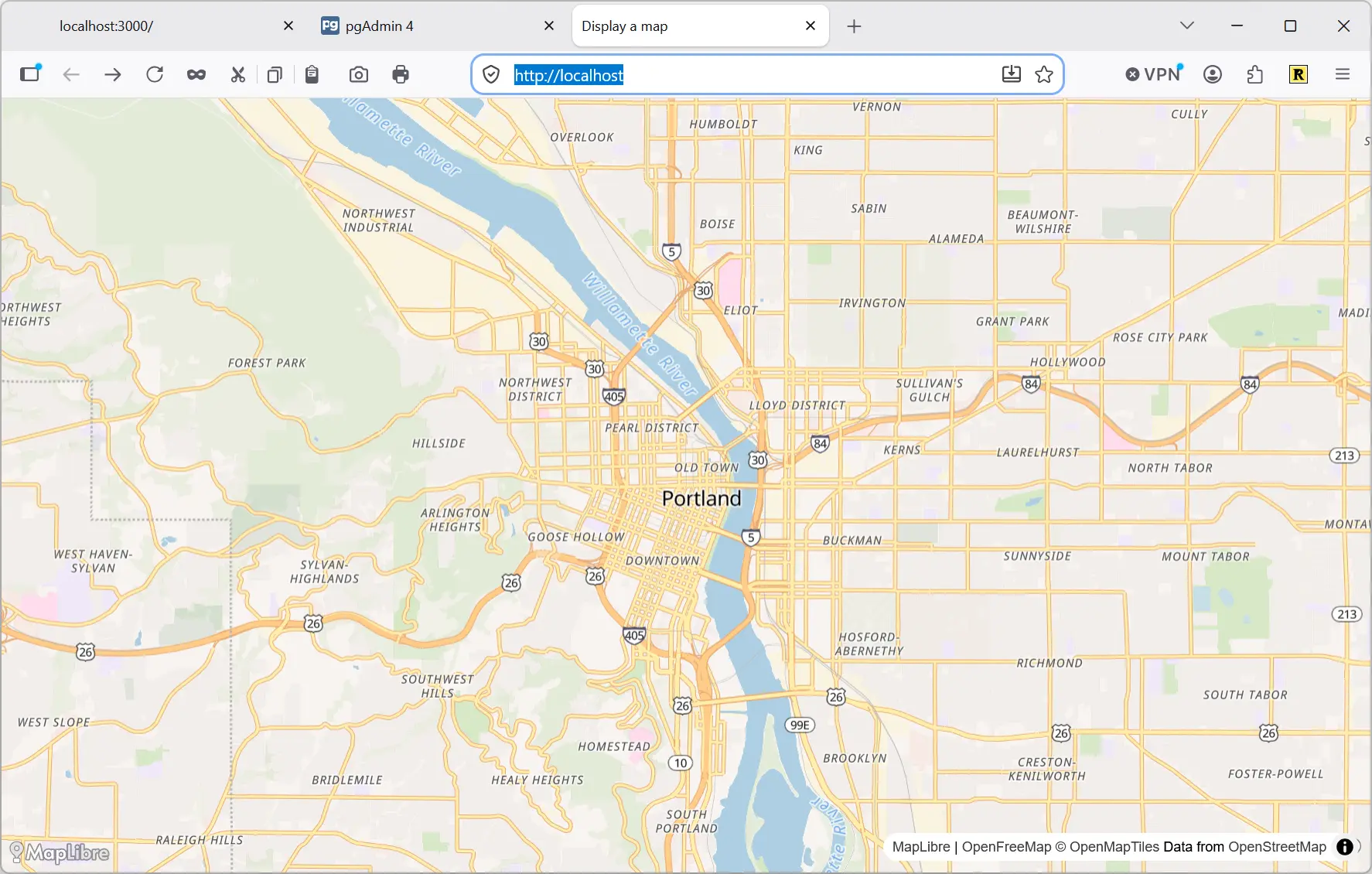
If the PostGIS db is running and you can access pgAdmin, Martin Tile Server and see a web map then the setup is all good to go. The next step is to put some data into the PostGIS db.
